 Kuvo Code
Bots
Teammates with one job each, on your Mac or your machines, that remember what they learn, wake themselves up to carry on, and talk things through together in group chats.
A bot is an agent with a name, a look and one job. It keeps one conversation, remembers what it learns, and can wake itself up later to carry on, like checking on something every morning. You give it its job, and more work, by writing to it.
Make a bot
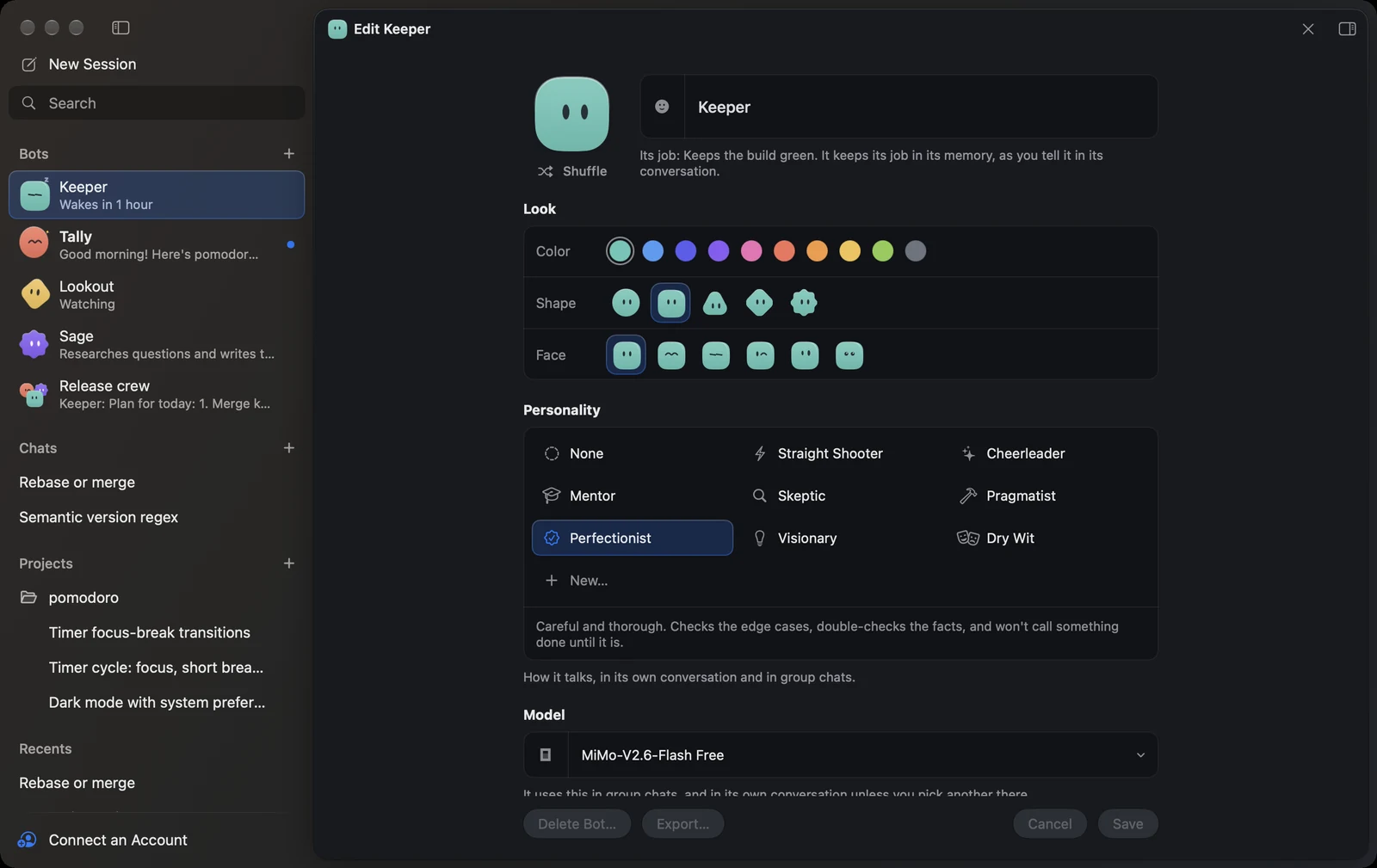
Click + next to Bots at the top of the sidebar, or choose File › New Bot…. Under Start From, you can begin with a ready-made bot, like one that plans your day from your calendar and mail, keeps up with your inbox or your mentions, tells you when a page changes, keeps a project’s build green or reviews its changes; it fills in a name, look and personality, and types the bot’s job in its new conversation for you to change and send. Those that read your mail or calendar use your integrations, or the browser without them, and never send anything without asking. To start from a bot someone shared with you, open its file, or choose File › Import Bot…. Pick its color, shape and face, or click Shuffle. Give it a name. Under Personality, pick how it talks, like Skeptic or Mentor, or click New… to write your own. Under Model, pick the model it uses; in its own conversation you can still pick another from the composer.
Then choose where it lives:
- This Mac: it works while your Mac is awake, and keeps it from going to sleep on its own while it works.
- A machine (see Remote machines): it keeps working, and wakes itself up, while your Mac is off. Under Ask First, a step that needs your answer waits until you open Kuvo Code.
It works in a folder of its own, or in one of your projects there. In a project, a fix it makes on a branch of its own leaves your checkout on the branch it was on. A bot on a machine has a small server badge on its face.
Adding or removing a bot’s own integration keys keeps the other settings, skills and commands in its folder.
Working with a bot
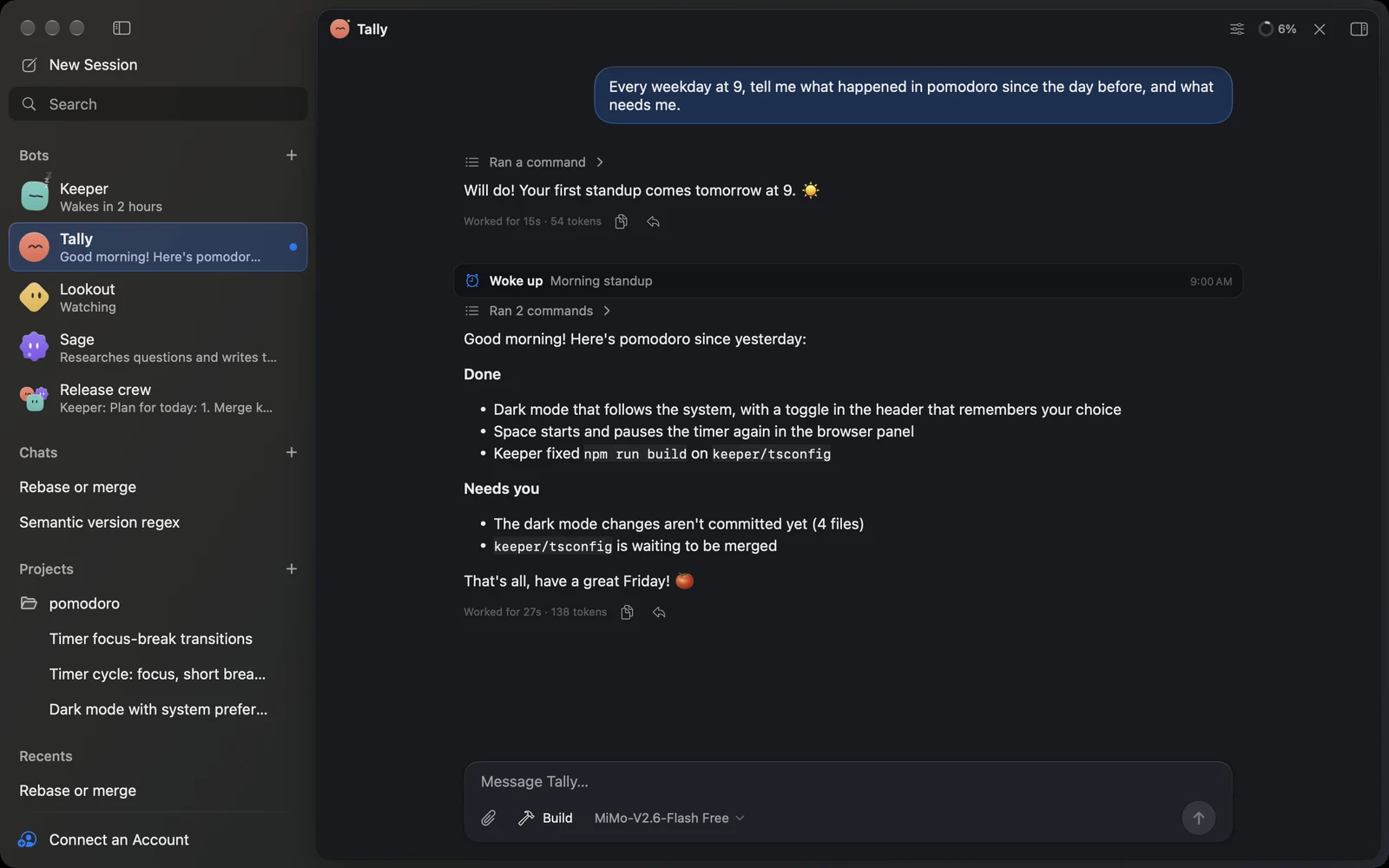
Click a bot in the sidebar to open its conversation and write to it, as in any session: the same tools, permissions and side panel. A new bot writes first: when its name says what it’s for, like Social Media Manager, it says what it takes its job to be and asks what it needs to start; otherwise it asks what you’d like it to do. What you tell it is its job. It keeps the job at the top of its memory and changes it as you tell it more, and the sidebar shows it in a few words under its name. Its avatar shows what it’s doing: it bounces while it works, hops and glows when it needs you, cheers when it has news for you, sleeps until its next wake-up, and keeps a lookout while it watches something. Under its name, the sidebar says the same: the start of what it told you while it’s unread, or, set apart with their sign, when it wakes up next, that it’s watching, or that it’s paused. You get a notification when it finishes or needs you, and can reply to it right there.
Bots and sessions can write to each other: any of them can see who else there is and send one a message, on this Mac or a machine, and wait for its answer or carry on. A bot can hand work to another, or report back to the session that asked for it.
Browsing
A bot can use the browser. On this Mac, it browses in tabs of its own, so it never takes over the page you’re on; they’re in its own side panel, which shows in its conversation, and they show in a group chat it’s in too. On a machine, it uses the machine’s own browser, which keeps its sign-ins and works while your Mac is off. When a site needs your sign-in, a code or a step only you can do, the bot asks in its conversation (see Signing in); if nobody’s there to answer, it carries on and tries again later.
Memory and wake-ups
Each bot keeps a memory file with its job and what it learns, and reads it when it starts work. To carry on later, it schedules a wake-up: at that time, its note to itself arrives in its conversation, marked Woke up, and it continues. A wake-up can also repeat, like every hour, every morning or on weekdays, until it’s canceled, at the same time and on the same day of the week when the clocks change or you travel. To keep an eye on something, like a status page or a build, a bot can set a watch instead: Kuvo Code runs a quick check for it on a schedule, without its model, and wakes it only when what the check prints is still different a couple of minutes later, including when it starts or stops printing anything, so a value that keeps changing wakes it each time the watch runs. A run that times out, is stopped, or where curl, wget or gh fails (as when the network is down) doesn’t count; Check Now shows what a run sees, or why it wouldn’t count.
On this Mac, wake-ups go while Kuvo Code is running, and ones it missed go when it opens again. On a machine, the engine there sends them, and keeps running while any are waiting.
To change a bot, click the sliders button in its header, or right-click it in the sidebar and choose Edit Bot…: its look, name, personality or model, its memory, Export… to share it (without its memory or wake-ups), or deleting it, which moves its folder, with its memory and what it made there, to the Trash (on a machine, to ~/.kuvo-code/trash there). Its wake-ups and watches are there too: add a wake-up yourself, send one at once with Wake Up Now, see what a watch sees with Check Now, cancel one, or Pause Wake-Ups to hold them all. Under Keys, give it a key of its own for an integration you bring a key for, like a GitHub token only it should use: its tools use that key instead of your shared one, and no other bot or session can. A bot that works in one of your projects uses the keys your sessions there do. For a bot on a machine, waking it, canceling, pausing and deleting need the machine connected; otherwise Edit Bot says so.
Changes you make to a bot’s name, model or personality while its machine is away reach it and its group chats when the machine connects again.
Group chats
With two bots or more, click + next to Bots and choose New Group Chat…, or choose File › New Group Chat…. Name it, say what it’s for if you like, pick its bots, and choose which one leads. Group chats show in the sidebar under your bots.
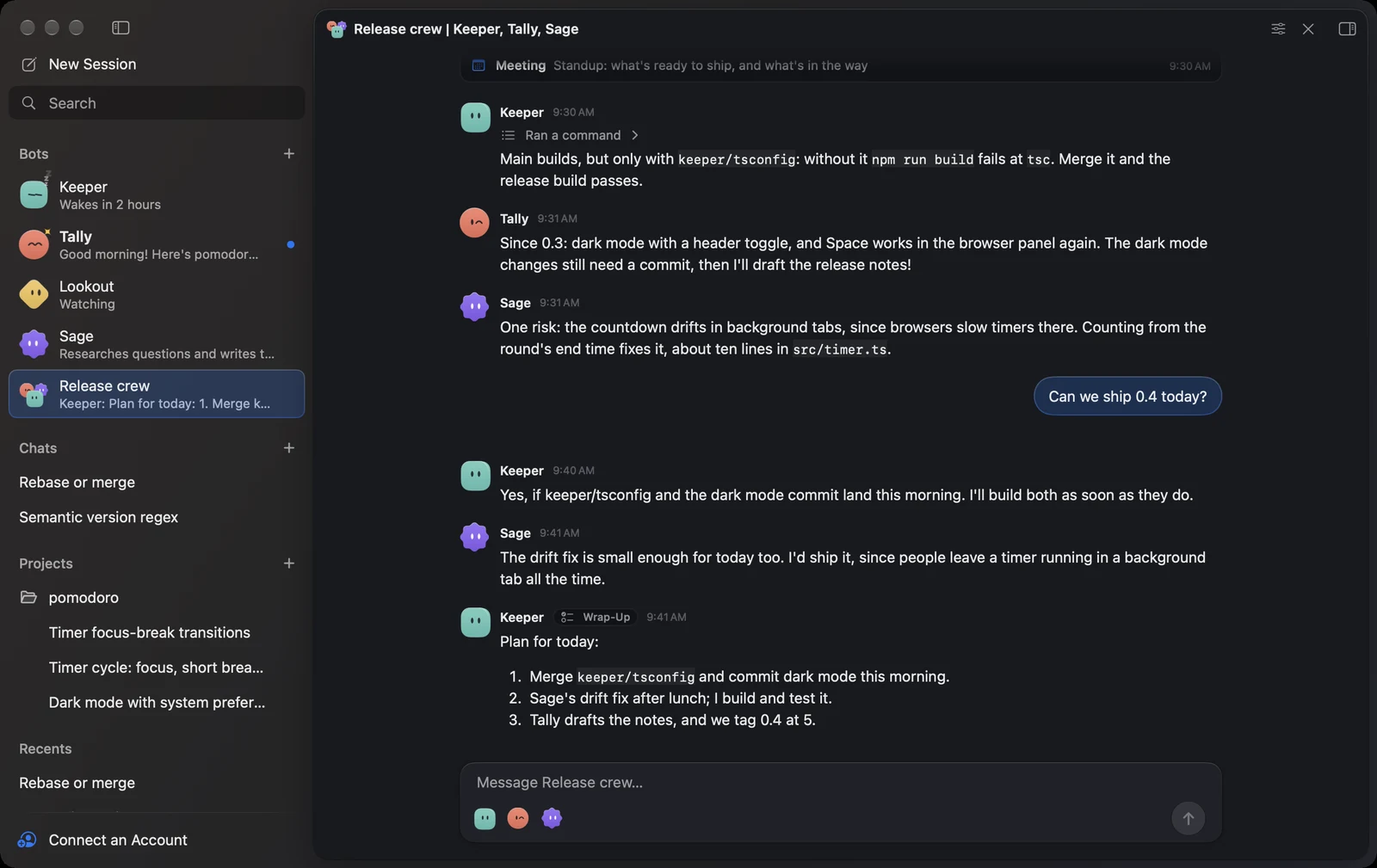
Write to the group, like “Discuss how we should handle the release”, and the bots talk it through, one at a time, answering each other. The lead goes first, unless you name someone with @, like @Scout (names show in the bot’s color); a bot with nothing new to add stays quiet. When a discussion went back and forth, the lead sums up what was decided and who does what. You can write while they talk: the bot talking reads it straight away. To stop them, click the stop button or press Esc. If a discussion goes on for many turns, it pauses until you click Keep Going. To answer a bot’s message, click the reply arrow under the pointer: it shows over the composer with a line for your answer, and your message names the bot. To answer one part, select it and click Add to Chat; as in a session, you can answer several parts in one message. To take back something you wrote, hover over it, click Undo From Here and confirm: it and what came after leave the chat, it comes back to the composer, and the bots set it aside.
A group chat can also meet on its own, like a standup every weekday at 9: in its editor, turn on Meets on a Schedule, pick when and how often, and say what to go over. At that time the topic goes to the chat and the bots talk it through; if you’re away, a notification brings the lead’s sum-up, and you can reply to it. Meetings happen while Kuvo Code is open.
In a group chat, bots can look things up but don’t change files; what a bot did on its turn, like searching the web, shows above its message, and a click shows each step. The work happens in their own conversations: after the discussion, the lead lists who does what. If you’d already told them to go ahead, each bot takes its part to its own conversation straight away; otherwise click Start the Work under the wrap-up. A part that needs another one done first waits for it, and starts with what that bot reported. Each bot works with all its tools; its part shows as working, Needs You when it’s waiting on you there, and then done, and its report comes back to the chat. Click a part to open that bot’s conversation. Each bot remembers the chats it’s in, so you can ask it about one in its own conversation afterwards. Group chats run while Kuvo Code is open, using each bot’s model.