 Kuvo Code
Usage in the menu bar
Plan limits and spend for your AI tools, in Kuvo Code's menu bar item.
Kuvo Code puts a usage item in the menu bar: how much of your plans’ limits is left, and what you’ve spent, for the accounts you connected in Kuvo Code: GitHub Copilot, ChatGPT (Codex), OpenCode, OpenRouter and Z.ai. It counts what you use them for anywhere, not only in Kuvo Code, and stays in the menu bar when you close the window.
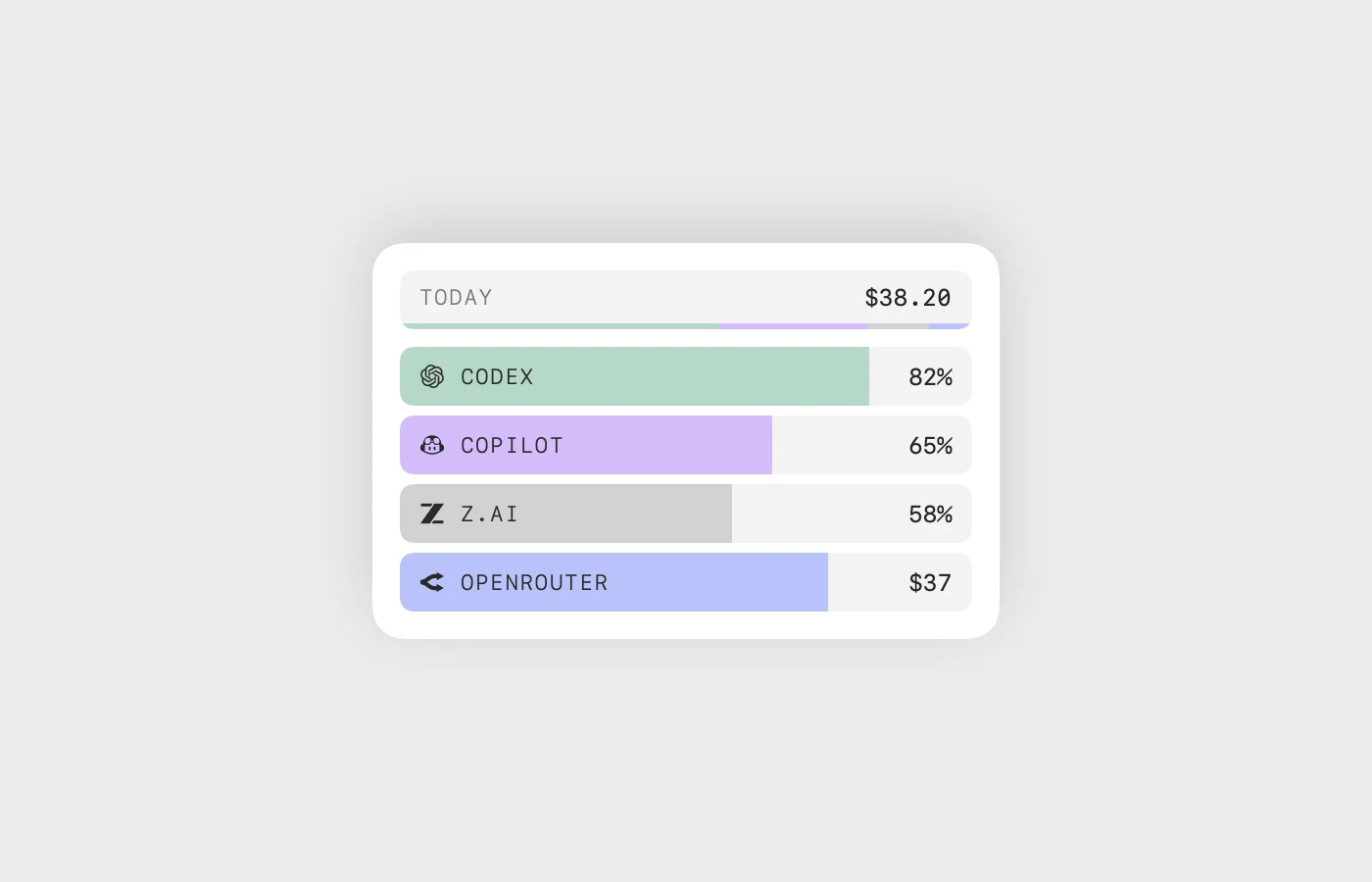
Getting started
Connect an account in Accounts and its usage turns on in the panel; tools signed in elsewhere on your Mac, like Claude Code, don’t show up. The first time you click the item, pick the ones to follow and click Connect Selected. If macOS asks to let it read a sign-in from your Keychain, choose Always Allow so it can keep updating.
Copilot, OpenCode, OpenRouter and Z.ai are read with the account you connected. Codex’s limits come from the Codex app’s own sign-in on your Mac.
What it shows
Each provider is a bar, filled to the limit that’s closest to running out. Hover it for which limit and when it resets; click it to open every limit underneath, with when each resets, your pace, spend and a 30-day trend. The bar at the top adds up what you’ve spent today; click it for yesterday and the last 30 days.
A provider with no usage to read stays out of the panel and the menu bar, and Customize says why.
Right-click a provider to hide or refresh it. Options › Customize reorders providers and chooses what each one shows.
Settings
Options › Settings chooses between bars and full cards, how usage reads (left or used), notifications when you’re running low, and what the menu bar item shows.
Credits
The usage item is a fork of OpenUsage by Robin Ebers (MIT). It isn’t affiliated with or endorsed by OpenUsage.