 Kuvo Code
The side panel
Keep the project's changes, files, terminals and a web browser next to the conversation, as tabs.
The side panel sits to the right of the conversation and holds your tools as tabs. It works on the project of the session you’re looking at. Show or hide it with the button at the top right of the window or ⌥ ⌘ 0, and expand it with the arrows at the right of its tabs for more room.
Tabs
Click + for a new tab. Until you go somewhere, it shows your tools (Changes, Terminal, Files) and the sites you visit most. Pick one, or search. The Tools menu opens them too:
| Tool | Shortcut |
|---|---|
| Changes | ⌥ ⌘ I |
| Files | ⌥ ⌘ F |
| New terminal | ⌃ ` |
| Run | ⌘ R |
| New browser tab | ⌥ ⌘ B |
Terminals and pages keep running while you look at another tab, and end when you close theirs.
Changes
The project’s uncommitted changes, with comments for the agent. See Reviewing changes.
Files
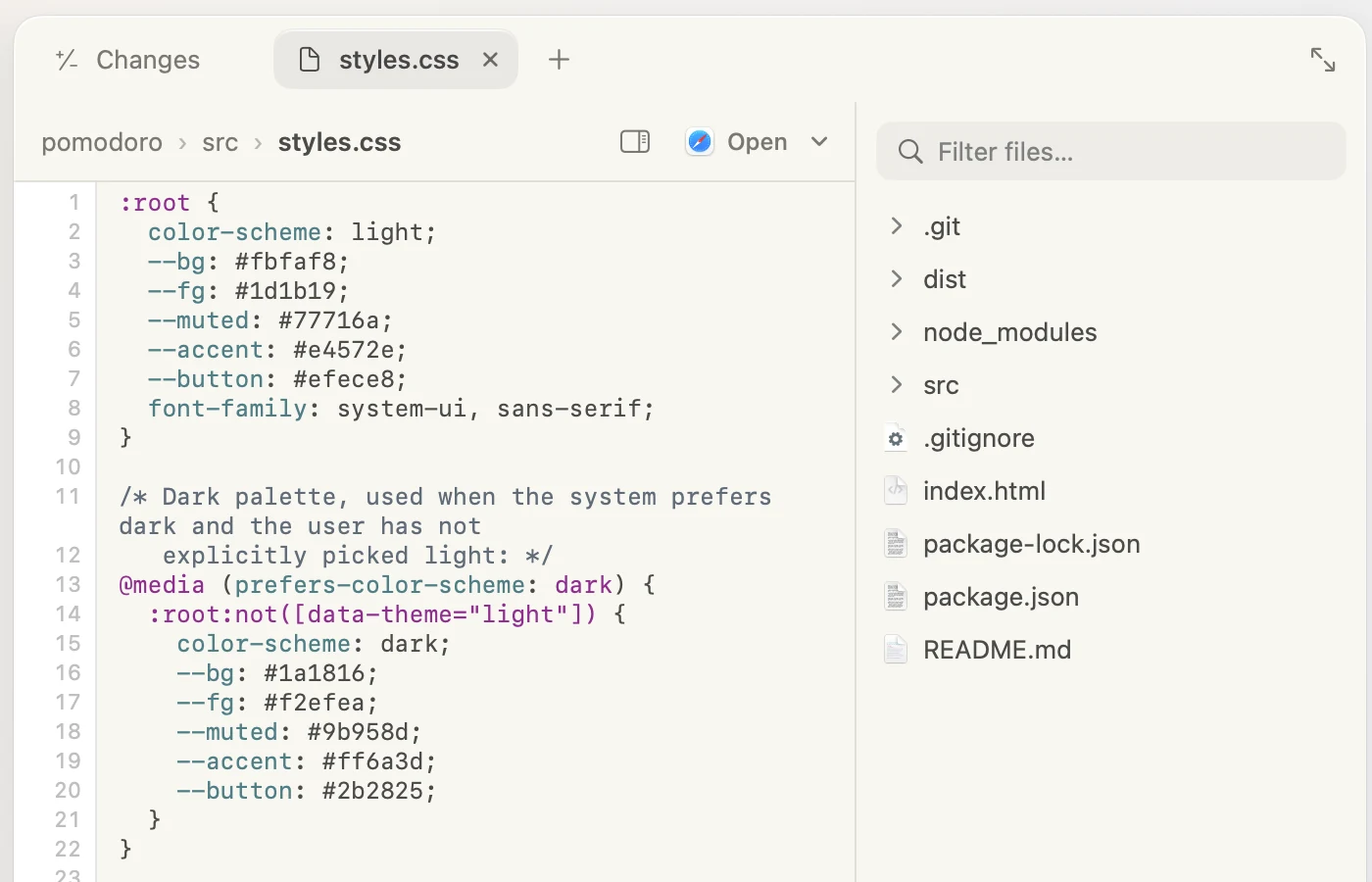
The project’s files as a tree, with a filter to find one by name. In a project with several folders, each folder is a row of its own, and the filter looks in all of them. Code is highlighted, Markdown is rendered, and anything else opens in Quick Look. To open a file without looking for it, press ⇧ ⌘ O and type part of its name. Select some lines of code and right-click Add to Message to point the agent at them; your message names the file and lines, like @src/app.ts:4-6. Open opens the file in its default app; the menu beside it lists the other apps that open it.
Terminal
Your login shell in the project’s folder. Select some output, like an error, and right-click Add to Message to paste it into your message.
To start your app with one click, give the project a run command, like npm run dev, in Edit Project…. The play button in the title bar, or ⌘ R, runs it in a terminal of its own, in the session’s folder (its worktree, if it has one). Run it again to start it over.
Browser
A full web browser, using the same engine as Safari. Type an address, or anything else to search. Sign-in windows, like Sign in with Google, open in their own tab and close when you’re done. It keeps its own sign-ins, separate from your other browsers. The camera button adds a screenshot of the page to your message, so the agent sees what you see. The agent can use it too: see Browsing for the agent.
Settings
Settings › Panel chooses the tab the panel starts with, what new tabs show, your search engine, and whether the panel comes forward when the agent browses. It can also clear the browser’s history and sign-ins.