 Kuvo Box
Installation
Download Kuvo Box or build it from source, and get the kuvo and docker commands on your PATH.
Download
Download Kuvo.dmg, open it, and drag Kuvo Box onto the Applications folder next to it. The download is about 3.4 MB. Older versions are on the releases page.
Kuvo Box needs macOS 15 or later on a Mac with Apple silicon.
Kuvo Box is signed with a Developer ID and notarized by Apple, so it opens like any other app. The first time, macOS asks you to confirm opening an app downloaded from the internet.
First launch
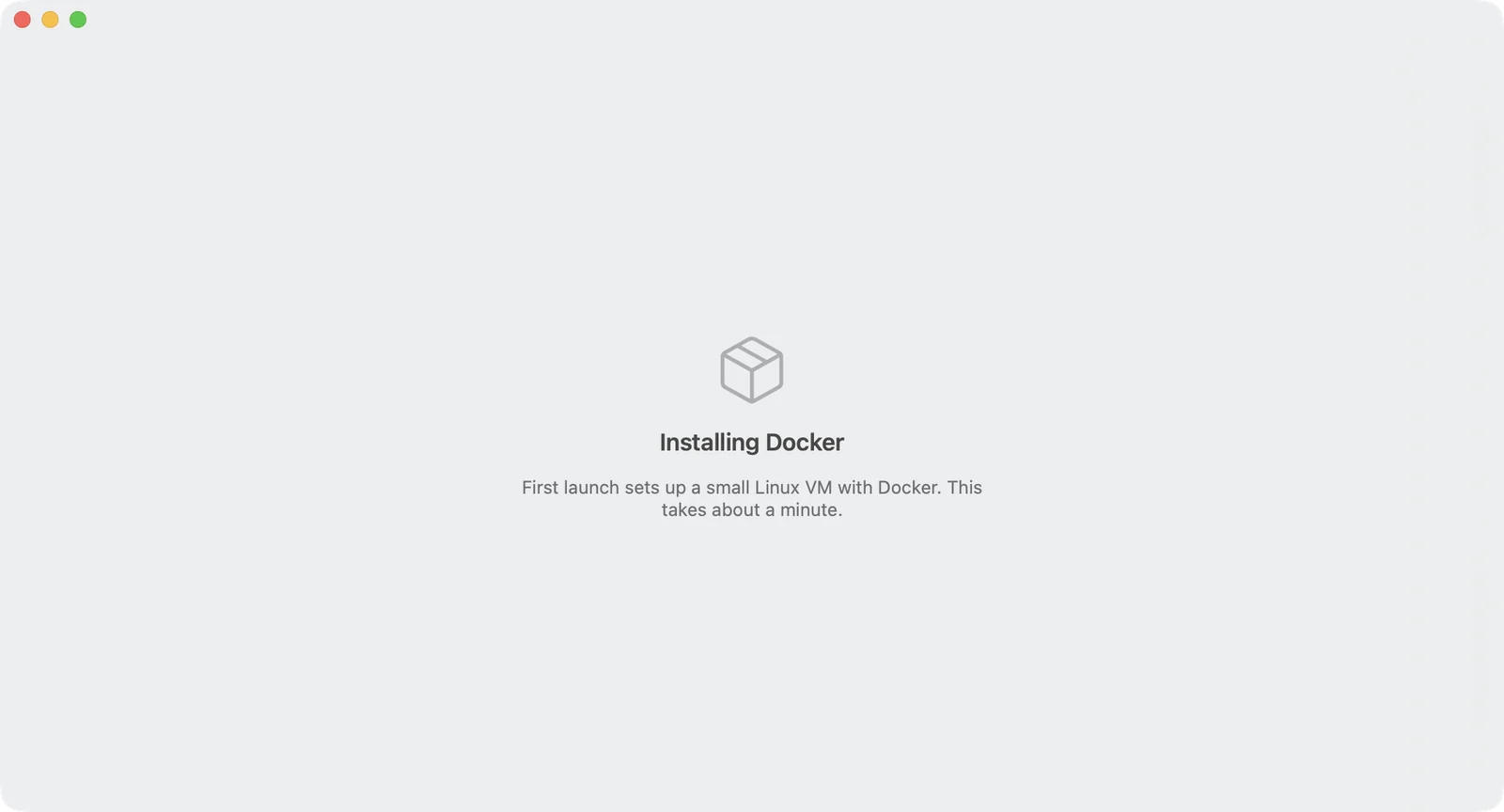
The first time you open Kuvo Box, it sets up its Linux VM:
- It downloads the Alpine Linux kernel, initial RAM disk and kernel modules from
dl-cdn.alpinelinux.org, about 40 MB, and checks each file against a SHA-256 checksum built into the app. - It creates a disk image for the VM. The disk is sparse: it can grow to 64 GB, but only takes the space your images and containers use, and shrinks again when you delete them.
- Inside the VM, it installs Alpine Linux and Docker from Alpine’s package repository.
- Once Docker is running, it asks whether to use Kuvo Box for the
dockercommand. If you agree, it creates a Docker context calledkuvoand makes it the default. See Docker and Compose.
This takes a minute or two depending on your connection, and the window shows each step. Later launches skip all of it and boot straight into Docker, usually in about three seconds.
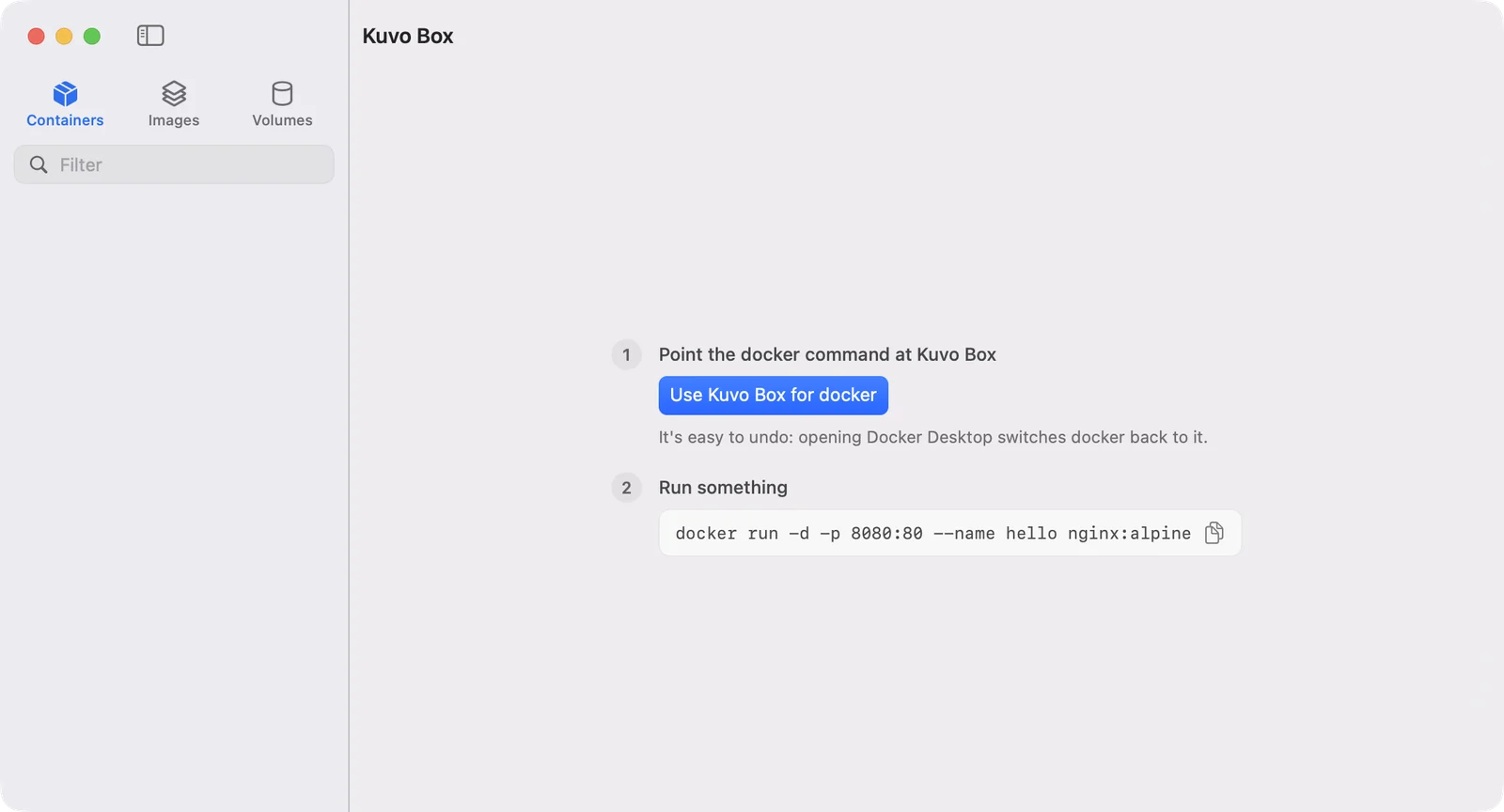
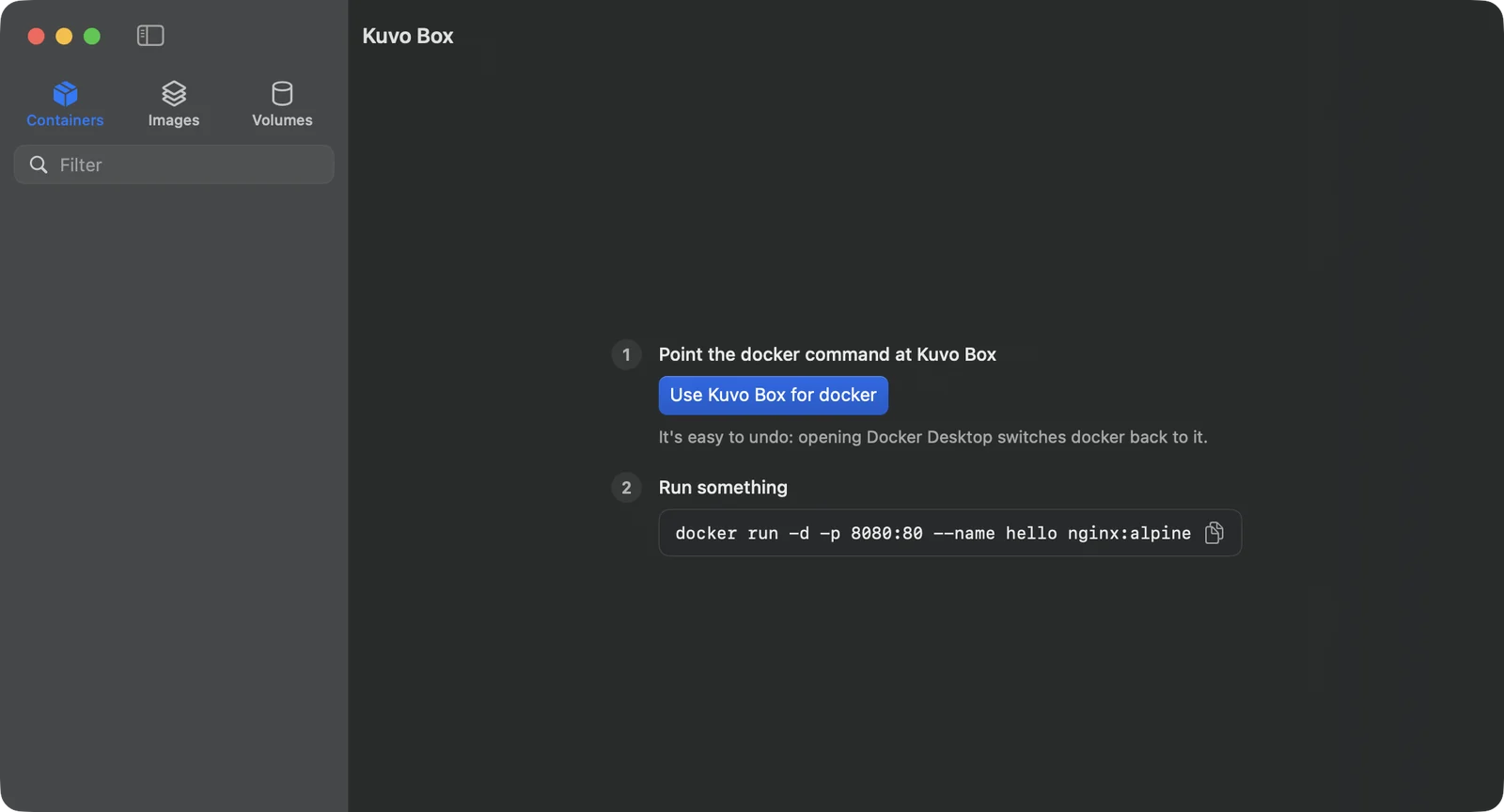
Once Docker is running, and until you run your first container, the window shows two steps: a button that points the docker command at Kuvo Box, then a command to try.
The kuvo command
The kuvo command-line tool is part of the app, so there’s nothing extra to install. Every time Kuvo Box opens, it makes sure kuvo is on your PATH:
- If
/opt/homebrew/binor/usr/local/binis writable, it puts a symlink there. - Otherwise it links
~/.kuvo/bin/kuvoand adds that folder to your PATH in~/.zprofile(and~/.bash_profileif you have one).
Open a new terminal window after the first launch, then check:
kuvo statusKuvo Box only replaces a kuvo symlink it created itself. It never overwrites a file or someone else’s link.
The docker command
Kuvo Box runs the Docker engine. To talk to it from a terminal you also need the Docker command, which is a separate program.
If you have Docker Desktop installed, you already have it. Otherwise install it with Homebrew:
brew install docker docker-compose docker-buildxHomebrew installs Compose and Buildx as plugins in its own folder. Tell the docker command where to find them by adding this to ~/.docker/config.json:
{
  "cliPluginsExtraDirs": ["/opt/homebrew/lib/docker/cli-plugins"]
}
Then point it at Kuvo Box, as described in Docker and Compose.
Build from source
You need Xcode 16 or later (or its command-line tools with Swift 6).
git clone https://github.com/serhatandic/kuvo-box.git
cd kuvo-box
./scripts/build-app.sh
open build/Kuvo.app
build-app.sh makes a release build, signs it with the virtualization entitlement Kuvo Box needs to run a VM, and puts the app in build/. During development, ./scripts/run.sh builds and runs a debug version instead.
The source has three dependencies: Apple’s swift-argument-parser for the CLI, SwiftTerm for the built-in terminal, and Sparkle for updates.
Updates
Kuvo Box updates itself. Once a day it checks the newest release on GitHub, and when there’s a new version it shows what’s new and asks whether to install it. To check right away, choose Kuvo Box › Check for Updates…. To stop the daily check, turn off Check for updates automatically in Settings.
Every update is signed with the project’s update key, and Kuvo Box refuses one that isn’t. The check downloads a small file from github.com; Kuvo Box doesn’t send any information about your Mac with it.
Your containers, images and volumes live in the VM’s disk, not in the app, so they survive the update.