# Reviewing changes
See what changed in the project like a pull request, and comment on lines for the agent.
The **Changes** tab shows what's changed in the project, straight from git, the way a pull request does: the agent's edits and yours. Open it with ⌥ ⌘ I.
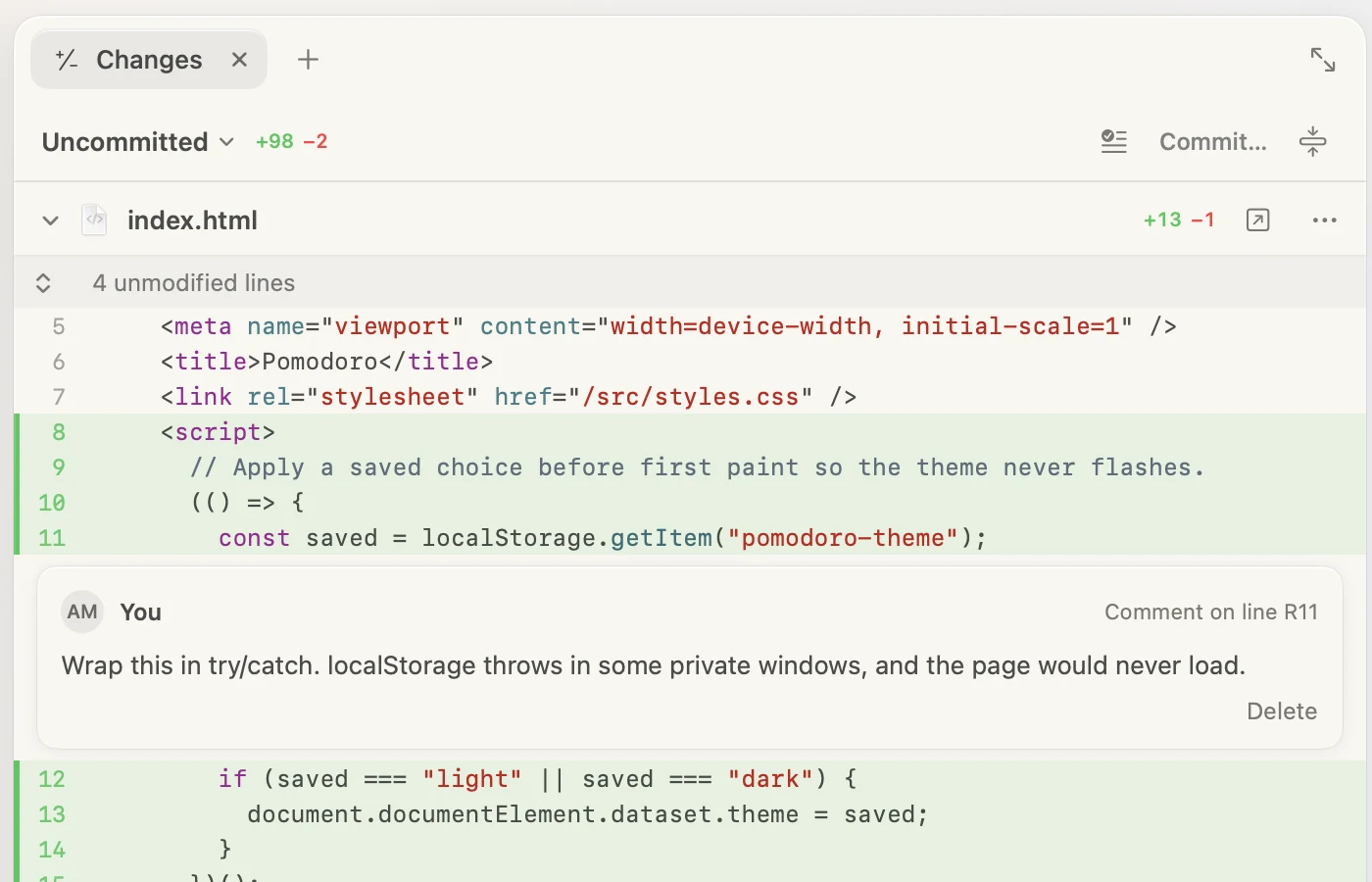
The menu at the top chooses **Uncommitted** (the default), **Unstaged** or **Staged** changes. On a branch other than the main one, **Since main** shows everything the branch changed, committed or not. **This Session** shows only what this session's agent changed, even when you or other sessions changed the same files. Outside a git repository, the tab shows the files the agent edited in this session instead. In a project with several folders, the folder menu next to it picks which folder's changes to show. **Commit…** commits what's staged, or all the changes shown when nothing is, and can push afterwards. **Suggest a Message** there has the session's model write the message for you. The checkmark button has the agent review what the tab shows, with the **/review** command.
## Pull requests and merging
On a branch other than the main one, the branch button next to **Commit…** has **Create Pull Request**: it pushes the branch and opens the pull request page on GitHub or GitLab, with a title and description the session's model wrote from the branch's commits and changes, for you to check before you create it.
A session with its own [worktree](/code/docs/sessions/#worktrees) opens the tab on **Since main**, and its branch button can also **Merge into main**, into your project's folder; once it's merged, **Archive Session and Remove Worktree** tidies up. Both take only what's committed. A merge that would conflict changes nothing; **Ask the Agent to Fix It** has the agent merge main into its branch and resolve the conflicts first.
## Reading the changes
Each file has a header with its path and how many lines it adds and removes; click it to fold the file away. Unchanged lines are folded too; click a fold to see them. New files show up as new, and changed pictures show before and after. A file's **…** menu can **Stage** or **Unstage** it, or **Discard Changes…** to put it back as it was; it asks first, and a new file goes to the Trash.
## Commenting
1. Hover a line's number and click **+**.
2. Type your comment and click **Comment** (⌘ Return).
Your comments go to the agent with your next message, each with the line it's about, and show in the transcript as cards. The composer shows how many are waiting; click that to discard them.