# The app
Find your way around Kuvo Box's window, menu bar and settings.
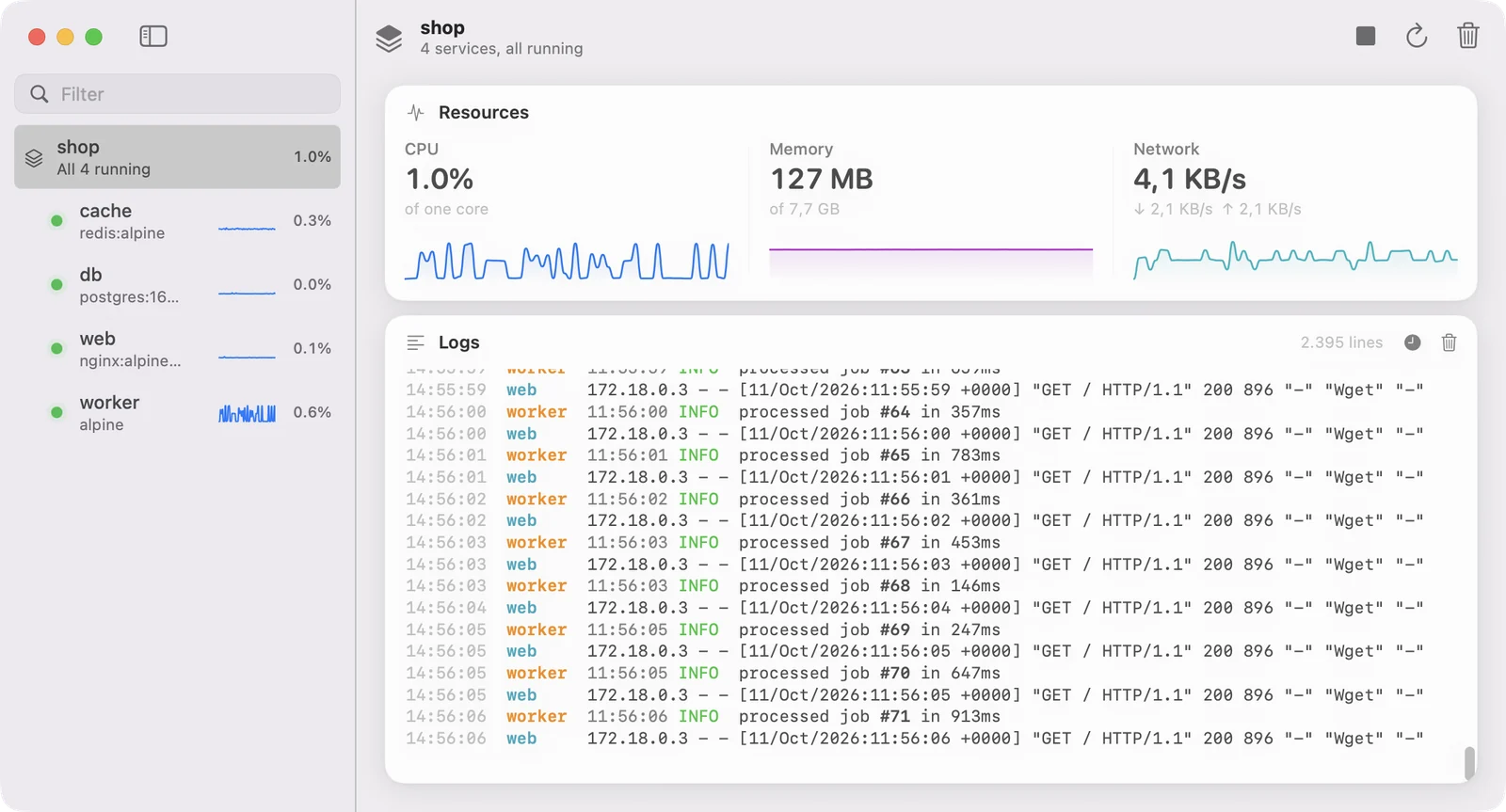
Kuvo Box's window has two parts: a sidebar with your containers, images or volumes, and a detail view for whatever you select. Switch between them with the tabs at the top of the sidebar, or press ⌘ 1 for containers, ⌘ 2 for images and ⌘ 3 for volumes. They're also in the **View** menu. Everything updates on its own as containers start, stop and change, whether you used the app, the `docker` command or the `kuvo` command.
## The sidebar
Each container has a row with a status dot, its name, its image and up to two published ports. Running containers also show a small CPU graph and their current CPU use.
- **Hover** a row to reveal a start or stop button.
- **Right-click** a row for everything else: restart, pause, open a terminal, open a published port in your browser, copy the ID or name, archive, or remove.
- **Filter** with the field at the top. It matches names and images. Press Esc to clear it. Containers, images and volumes each keep their own filter.
The status dot is green with a soft pulse while a container runs, yellow when it's paused, orange while it's starting, stopping or restarting, blue if it was created but never started, and gray when it's stopped.
## Compose projects
Containers started by Docker Compose are grouped under their project. The project row shows how many services are running and their combined CPU.
- **Hover** the project's icon to turn it into a chevron, then click to collapse or expand the group. Filtering always expands groups so matches are never hidden.
- **Select** the project to see its combined resources and its services' logs merged into one stream, each line labeled with its service in its own color.
- **Start, stop, restart or remove** the whole project from the toolbar or by right-clicking the project row.
When you remove a project, Kuvo Box asks whether to keep its volumes. **Remove** deletes the containers and keeps the data in their volumes. **Remove with Volumes** also deletes the volumes the containers mount and the project's named volumes. Volumes still used by other containers are always kept.
## Container details
Select a container to see:
- **The title bar**: its name, how long it's been running (and its health check status, if it has one), its image, and who created it if it was made with `kuvo new`.
- **The toolbar**: a button for each published port that opens it in your browser, a terminal, start or stop, restart, archive, and remove.
- **Resources** and **Logs**, described below.
## Resources
The Resources pane shows CPU, memory and network use, updated every second, with a minute of history.
- **CPU** is a percentage of one core, so a container using two full cores shows 200%.
- **Memory** is the container's current use, out of the memory available to the VM.
- **Network** is total traffic, with received and sent shown separately below it.
Live stats only stream while the window is on screen. When you close, minimize or cover the window, Kuvo Box stops collecting them, which is a large part of why it uses so little power when you're not looking at it.
## Logs
The Logs pane follows the container's output as it's written, with the colors the program printed.
- The **wrap** button (a return arrow) wraps long lines to fit the pane. It's off by default, so long lines run past the edge and you scroll sideways to read them.
- The **clock** button shows or hides the time each line arrived.
- The **trash** button clears the view. It doesn't delete anything from the container.
The wrap and clock buttons are tinted while they're on, and Kuvo Box remembers both settings.
For a Compose project, logs from every service are merged in time order, each labeled with its service.
## Terminal
Press ⌃ ` (or click the terminal button in the toolbar) to open a shell in the selected container, in a pane next to its resources and logs.
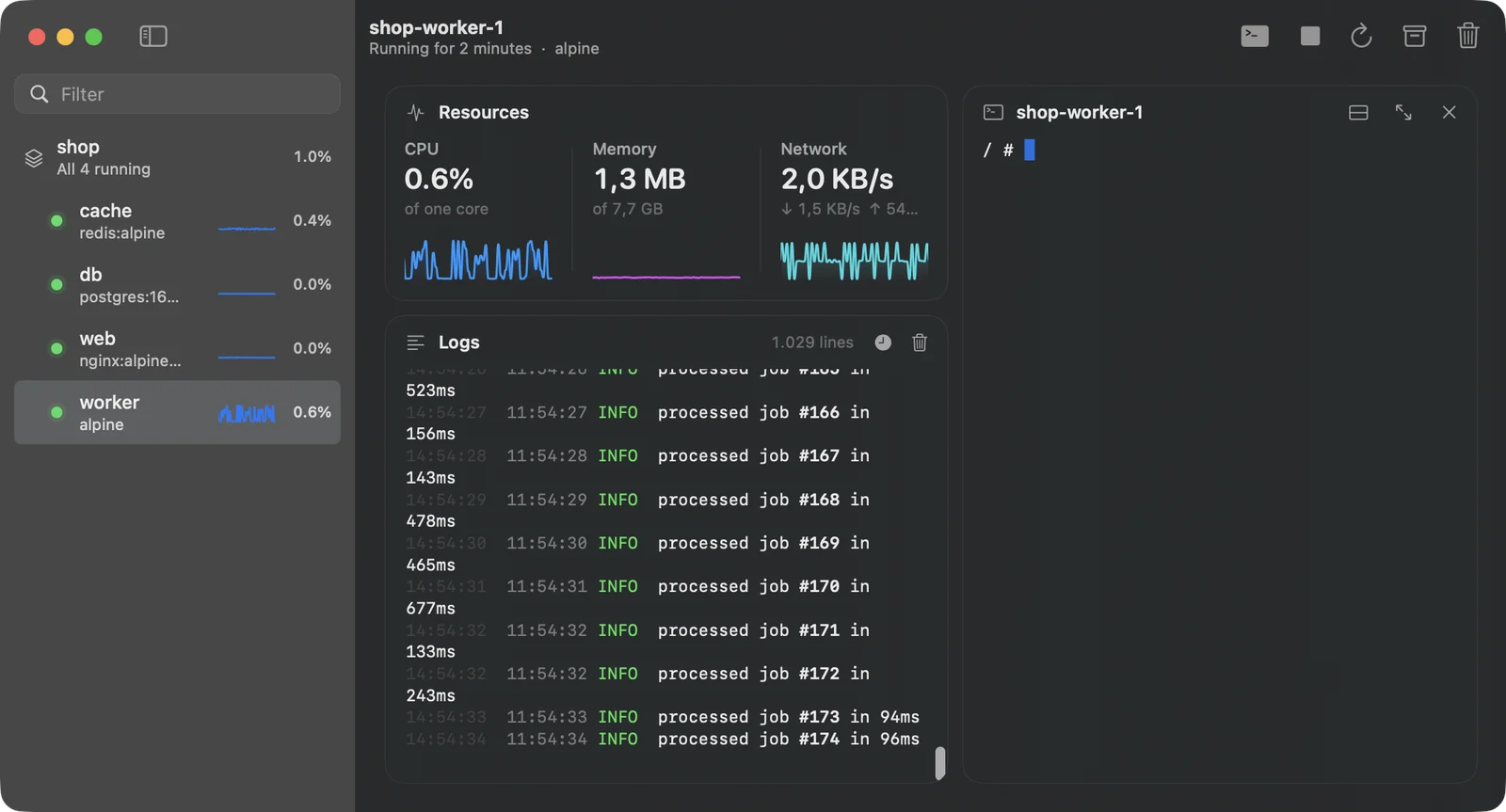
The shell is `bash` if the image has it, otherwise `sh`. Each container keeps its own terminal while you switch between containers. From the pane's header you can move it below the other panes, maximize it, or close it.
To use your own terminal app instead, right-click the container and choose **Open in Terminal App**, or run `kuvo shell `.
## Archive
Archiving stops a container and keeps it for a while instead of deleting it right away. Archived containers show an archive icon and when they'll be deleted. **Restore** starts one again.
You choose how long archived containers are kept in Settings. Nothing else is ever deleted automatically.
## Images
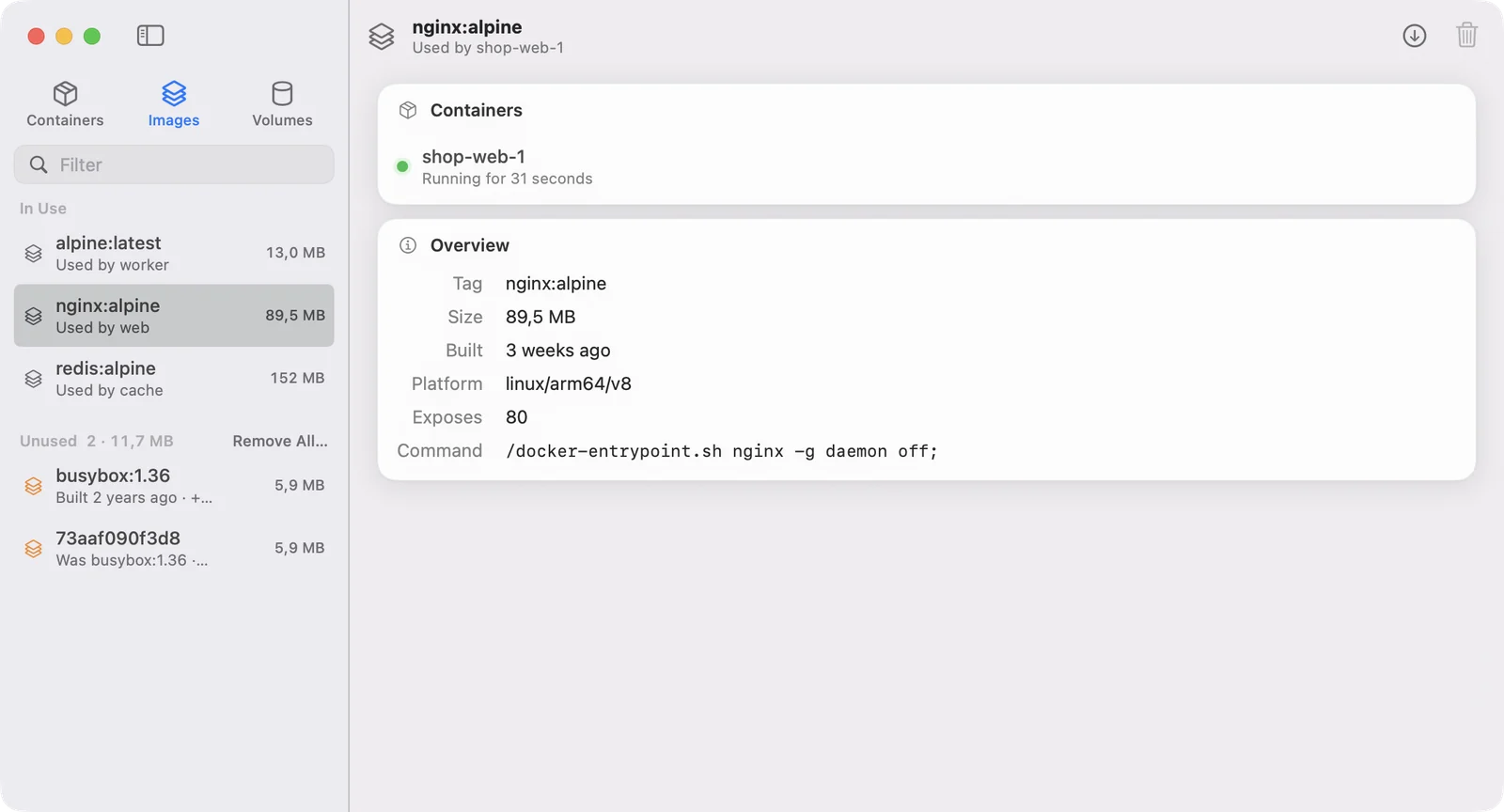
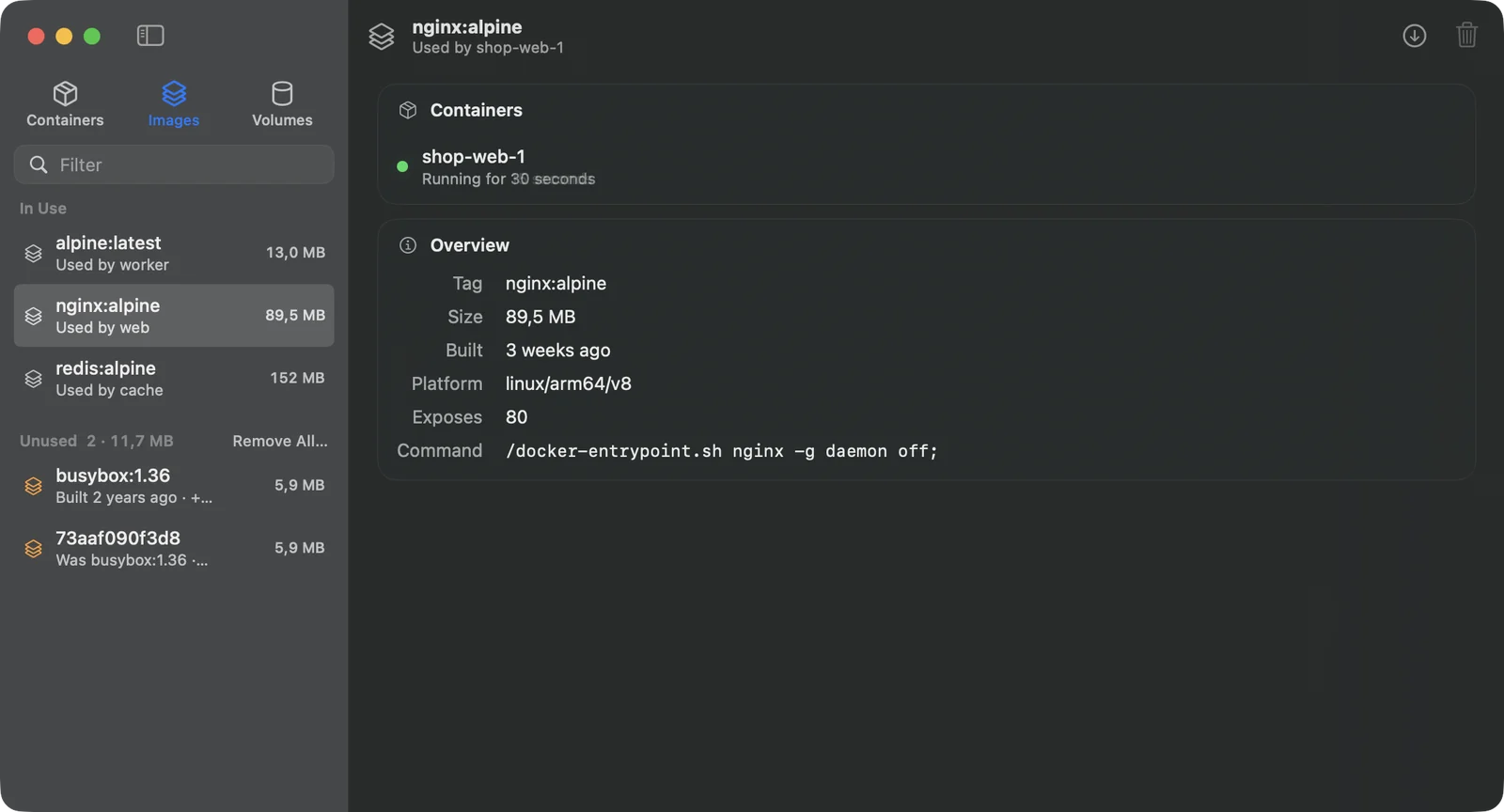
Click **Images** at the top of the sidebar, or press ⌘ 2, to see every image and its size. Like volumes, they're in two groups: **In Use**, for images a container was created from, running or stopped, and **Unused**, with orange icons and their total size in the header.
Each image is one row however many tags it has, so sizes aren't counted twice. The row shows the tag a container was run with, or a specific tag rather than `latest`, and **+2 tags** when there are more.
**Untagged images** are usually older versions. When you pull a newer `nginx:alpine`, the tag moves to the new image and the old one loses its name. Kuvo Box lists untagged images by the start of their ID and, if it saw the tag before it moved, says what it was: **Was nginx:alpine**. A container can keep running an untagged image, so it can also appear under In Use.
Select an image to see:
- **Under its name**, whether anything uses it, and for an unused untagged image, what replaced it.
- **Containers**: each container created from it, and whether it's running. Click one to open it.
- **Overview**: its tags, size, when it was built, its platform, the ports it exposes and the command it runs. Intel (`linux/amd64`) images say they run through Rosetta.
Right-click a tag to copy it, or to remove it while the image has others. Right-click an image in the sidebar to copy its name or ID.
 ### Pull an image
Click the pull button in the toolbar, or press ⌘ N, and enter a name like `nginx:alpine`. Leave out the tag to get `latest`. If the name is wrong, or the image needs a login, Kuvo Box says so before downloading anything; for private images, run `docker login` in a terminal first. Once the download starts, the image appears at the top of the list with how much has downloaded, and it's selected when it's done.
Pulling an image you already have gets its newest version. If there's nothing newer, Kuvo Box says it's already up to date. If there is, the version you had becomes untagged.
### Remove images
- **Remove** an unused image by hovering it and clicking the trash button, by right-clicking it, or by selecting it and clicking **Remove** in the toolbar. All its tags go with it.
- **Remove all unused images** with **Remove All…** in the Unused header. Kuvo Box names the images first, and when some are untagged, offers to remove just those. Images can share layers, so removing several can free less space than their sizes add up to.
Docker won't remove an image a container was created from, even a stopped one, so remove the container first.
## Volumes
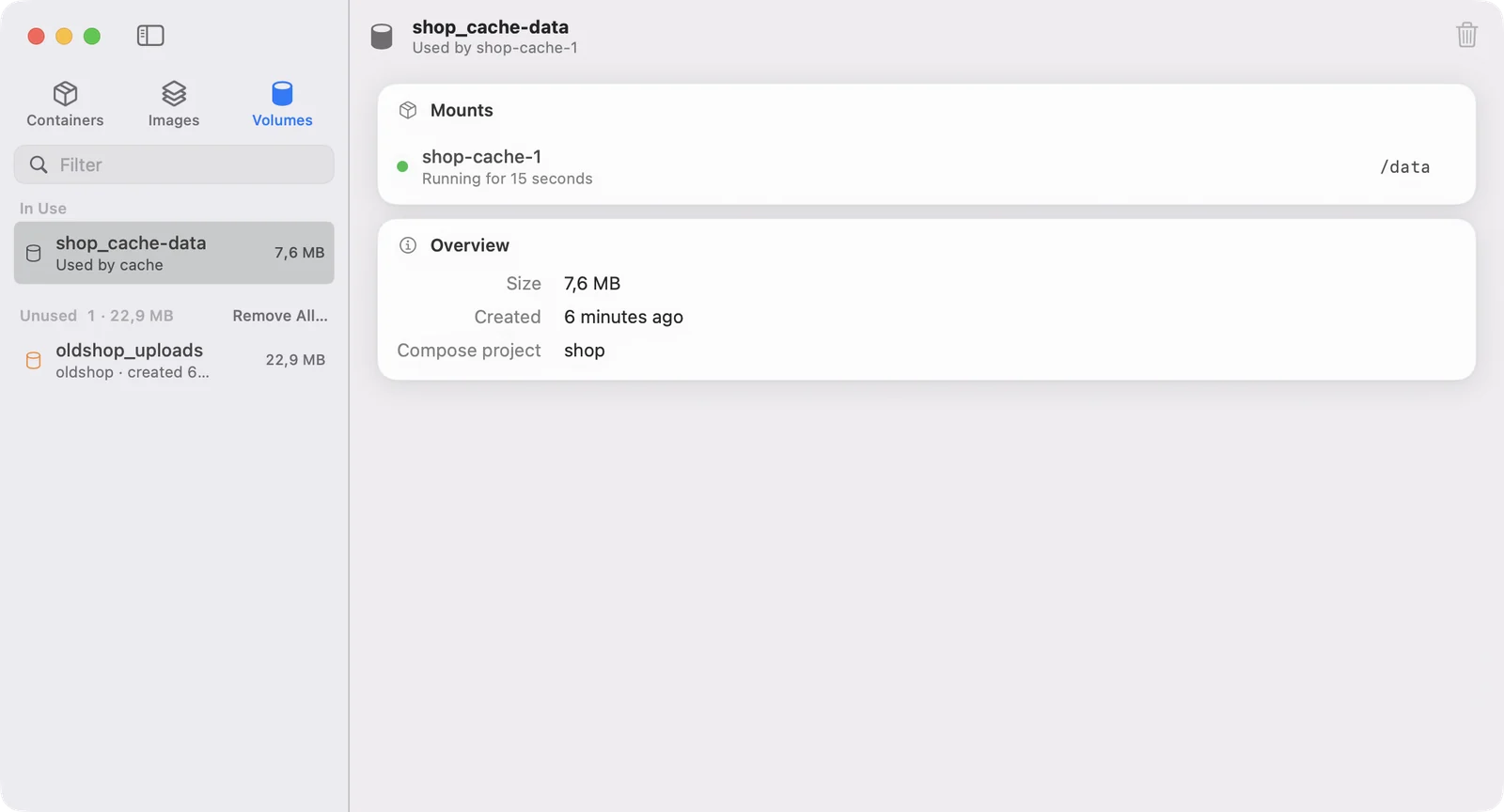
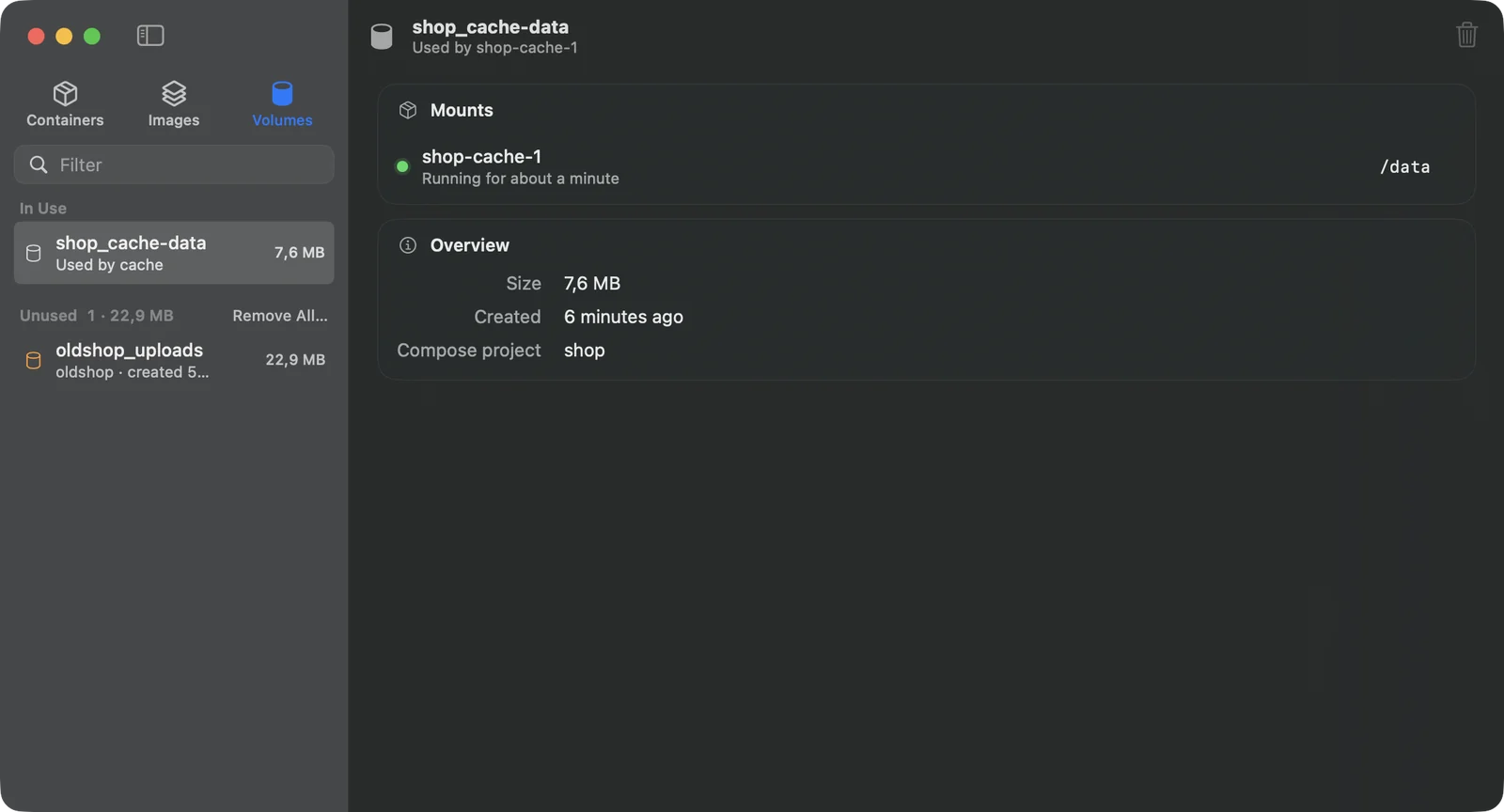
Click **Volumes** at the top of the sidebar, or press ⌘ 3, to see every volume and its size, in two groups:
- **In Use**: volumes that at least one container mounts, running or stopped. Each row says which containers.
- **Unused**: volumes no container uses, often left behind by removed containers or old Compose projects. Their icon is orange, and each row shows the Compose project it came from (or **Anonymous** for a volume Docker named itself) and when it was created. The group's header shows how many there are and how much space they take.
Anonymous volumes are listed by the first 12 characters of their ID. The filter field matches volume names and Compose projects.
Select a volume to see:
- **Under its name**, whether anything uses it. For an unused volume, this says why it might still be there: for example, that the Compose project it came from has no containers left, or that it's anonymous.
- **Mounts**: each container that uses it, whether that container is running, and the path where the volume appears inside it, marked **read-only** when it is. Click a container to open it.
- **Overview**: its size, when it was created, its Compose project, and for an anonymous volume, where those come from.
Right-click a volume in the sidebar to copy its full name, or its path inside the VM.
### Pull an image
Click the pull button in the toolbar, or press ⌘ N, and enter a name like `nginx:alpine`. Leave out the tag to get `latest`. If the name is wrong, or the image needs a login, Kuvo Box says so before downloading anything; for private images, run `docker login` in a terminal first. Once the download starts, the image appears at the top of the list with how much has downloaded, and it's selected when it's done.
Pulling an image you already have gets its newest version. If there's nothing newer, Kuvo Box says it's already up to date. If there is, the version you had becomes untagged.
### Remove images
- **Remove** an unused image by hovering it and clicking the trash button, by right-clicking it, or by selecting it and clicking **Remove** in the toolbar. All its tags go with it.
- **Remove all unused images** with **Remove All…** in the Unused header. Kuvo Box names the images first, and when some are untagged, offers to remove just those. Images can share layers, so removing several can free less space than their sizes add up to.
Docker won't remove an image a container was created from, even a stopped one, so remove the container first.
## Volumes
Click **Volumes** at the top of the sidebar, or press ⌘ 3, to see every volume and its size, in two groups:
- **In Use**: volumes that at least one container mounts, running or stopped. Each row says which containers.
- **Unused**: volumes no container uses, often left behind by removed containers or old Compose projects. Their icon is orange, and each row shows the Compose project it came from (or **Anonymous** for a volume Docker named itself) and when it was created. The group's header shows how many there are and how much space they take.
Anonymous volumes are listed by the first 12 characters of their ID. The filter field matches volume names and Compose projects.
Select a volume to see:
- **Under its name**, whether anything uses it. For an unused volume, this says why it might still be there: for example, that the Compose project it came from has no containers left, or that it's anonymous.
- **Mounts**: each container that uses it, whether that container is running, and the path where the volume appears inside it, marked **read-only** when it is. Click a container to open it.
- **Overview**: its size, when it was created, its Compose project, and for an anonymous volume, where those come from.
Right-click a volume in the sidebar to copy its full name, or its path inside the VM.
 - **Remove** an unused volume by hovering it and clicking the trash button, by right-clicking it, or by selecting it and clicking **Remove** in the toolbar.
- **Remove all unused volumes** with **Remove All…** in the Unused header. Kuvo Box names the volumes and says how much data they hold before deleting them. If you've filtered the list, only the unused volumes that match are removed.
Removing a volume deletes its data for good. Docker won't remove a volume while any container uses it, even a stopped one, so remove the container first.
Kuvo Box measures sizes when you open the list and again whenever Docker reports a change, like a container starting or a volume being created. It doesn't re-measure on a timer, because measuring means reading every file in every volume. Data a running container writes shows up at the next change.
## Storage
Choose **Kuvo Box › Storage…** to see how much space Kuvo Box takes on your Mac and what's using it. It's also the **Storage** tab in Settings.
- **Remove** an unused volume by hovering it and clicking the trash button, by right-clicking it, or by selecting it and clicking **Remove** in the toolbar.
- **Remove all unused volumes** with **Remove All…** in the Unused header. Kuvo Box names the volumes and says how much data they hold before deleting them. If you've filtered the list, only the unused volumes that match are removed.
Removing a volume deletes its data for good. Docker won't remove a volume while any container uses it, even a stopped one, so remove the container first.
Kuvo Box measures sizes when you open the list and again whenever Docker reports a change, like a container starting or a volume being created. It doesn't re-measure on a timer, because measuring means reading every file in every volume. Data a running container writes shows up at the next change.
## Storage
Choose **Kuvo Box › Storage…** to see how much space Kuvo Box takes on your Mac and what's using it. It's also the **Storage** tab in Settings.
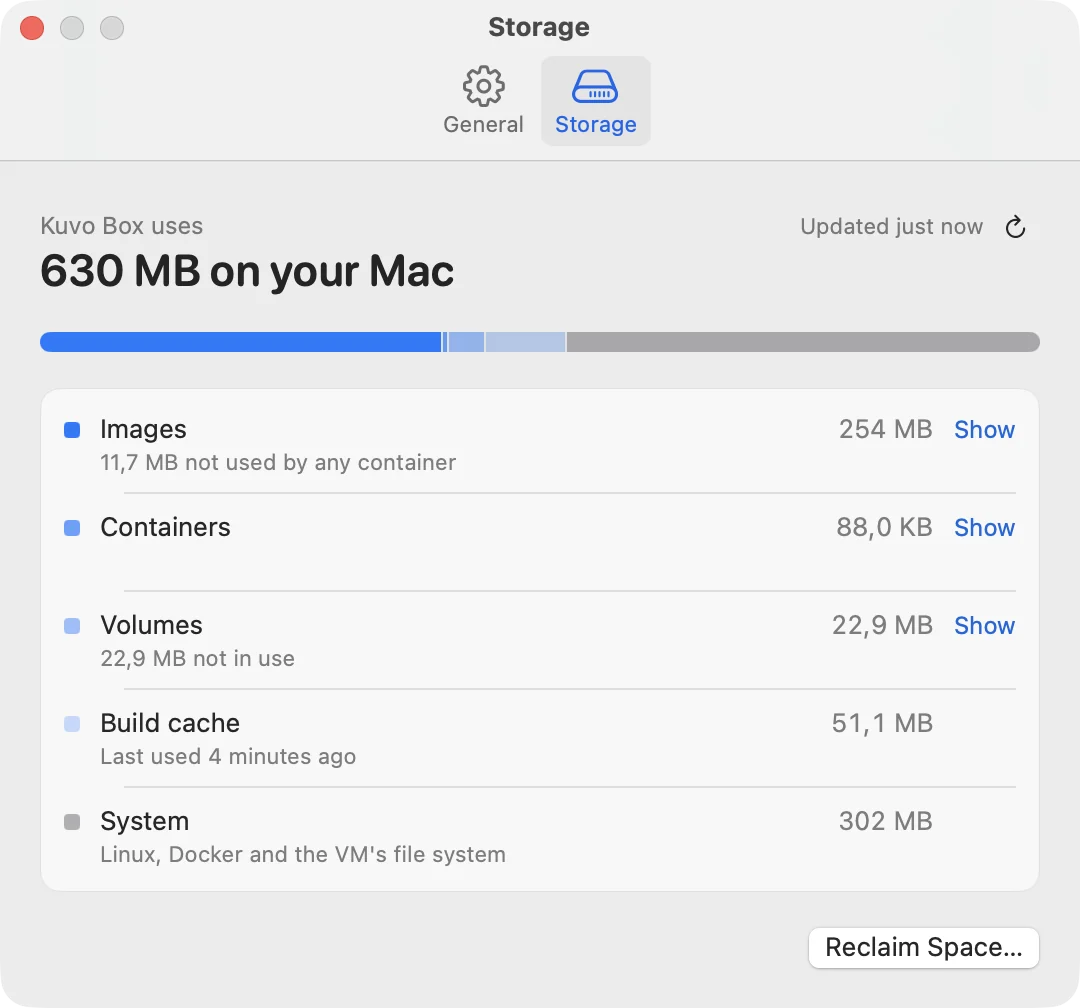
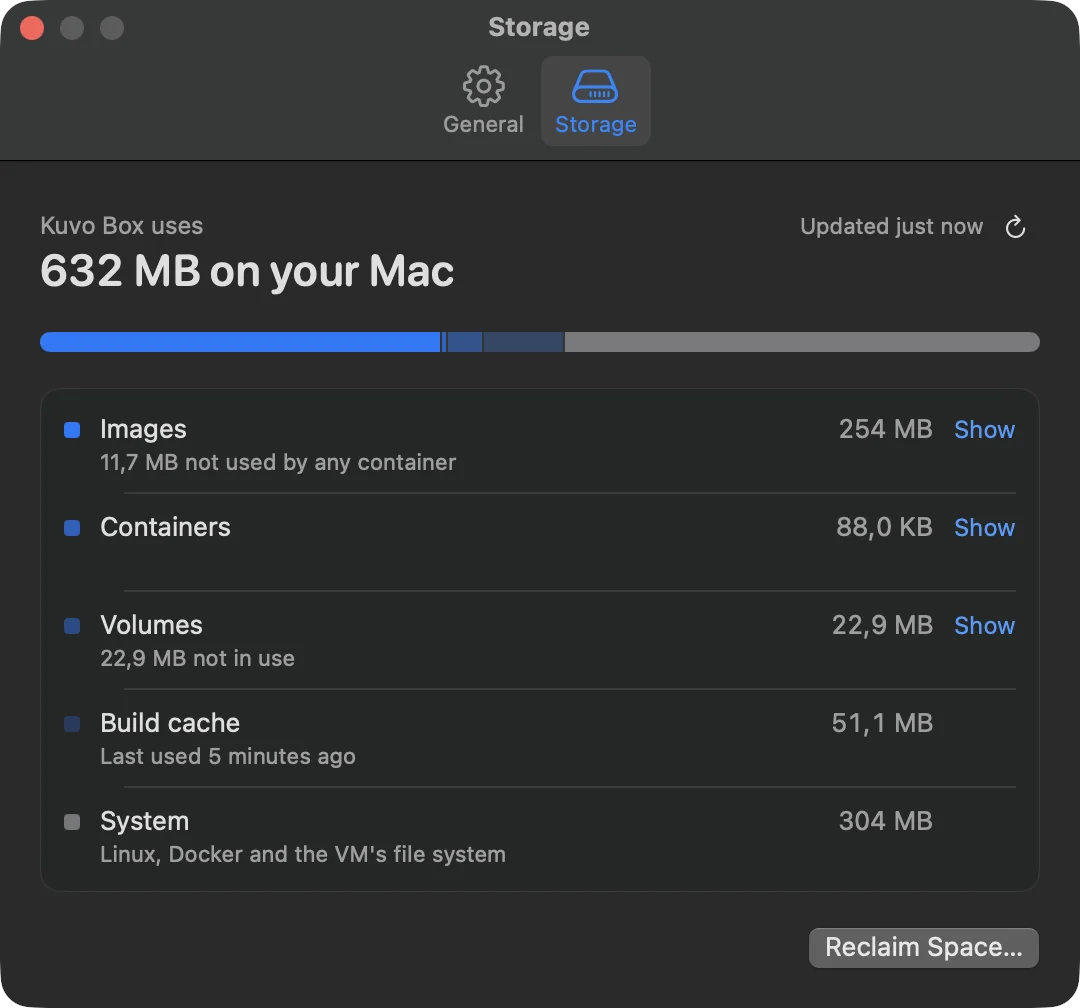 - **Kuvo Box uses … on your Mac** is the real size of the VM's disk on your Mac.
- The bar and the list below split that into **Images**, **Containers** (what containers wrote on top of their images), **Volumes**, **Build cache** and **System** (Linux, Docker and the VM's file system). Each says how much could be freed, for example how much of the images no container uses. **Show** opens that section in the main window.
Kuvo Box measures when you open the page, after you reclaim space, and after anything is deleted while the page is open. Click the arrow next to **Updated** to measure again.
### Reclaim space
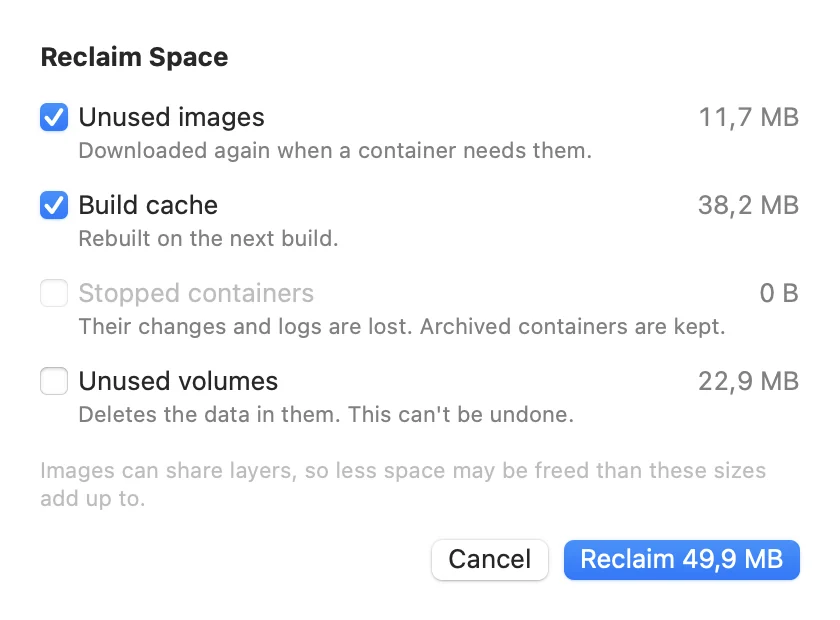
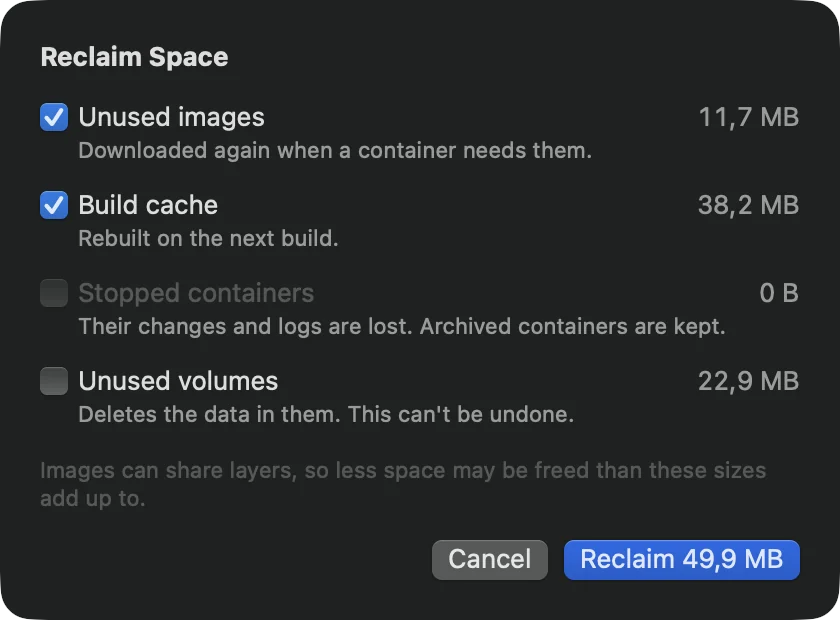
Click **Reclaim Space…** and choose what to remove:
| Choice | Selected at first | What you lose |
| --- | --- | --- |
| Unused images | Yes | Nothing: they download again when a container needs them. |
| Build cache | Yes | Nothing: it's rebuilt on the next build. |
| Stopped containers | No | Their changes and logs. Archived containers are always kept. |
| Unused volumes | No | The data in them. This can't be undone. |
"Unused" means the same as in the Images and Volumes sections: no container, running or stopped, uses it. When it's done, Kuvo Box shows how much space came back on your Mac, measured from the disk itself. That can be less than the sizes add up to, because images share layers.
- **Kuvo Box uses … on your Mac** is the real size of the VM's disk on your Mac.
- The bar and the list below split that into **Images**, **Containers** (what containers wrote on top of their images), **Volumes**, **Build cache** and **System** (Linux, Docker and the VM's file system). Each says how much could be freed, for example how much of the images no container uses. **Show** opens that section in the main window.
Kuvo Box measures when you open the page, after you reclaim space, and after anything is deleted while the page is open. Click the arrow next to **Updated** to measure again.
### Reclaim space
Click **Reclaim Space…** and choose what to remove:
| Choice | Selected at first | What you lose |
| --- | --- | --- |
| Unused images | Yes | Nothing: they download again when a container needs them. |
| Build cache | Yes | Nothing: it's rebuilt on the next build. |
| Stopped containers | No | Their changes and logs. Archived containers are always kept. |
| Unused volumes | No | The data in them. This can't be undone. |
"Unused" means the same as in the Images and Volumes sections: no container, running or stopped, uses it. When it's done, Kuvo Box shows how much space came back on your Mac, measured from the disk itself. That can be less than the sizes add up to, because images share layers.
 ### Space comes back on its own
You don't need Reclaim Space to get space back. Whenever Docker deletes something, whether from Kuvo Box or with the `docker` command, Kuvo Box tells macOS which parts of the VM's disk are now free, and the disk shrinks on your Mac within a few seconds. Kuvo Box also does this every time the VM starts.
1. Before: an image takes 1 GB in the VM, and Kuvo Box's disk on the Mac takes 1.9 GB.
2. After deleting it: Linux can reuse the space, but the disk on the Mac still takes 1.9 GB.
3. Seconds later: Kuvo Box has Linux report the free blocks (a trim), macOS releases them, and the disk takes 0.9 GB.
## Menu bar
Kuvo Box has a menu bar icon that lists every container with a start or stop button, so you can manage them with the window closed. Closing the window doesn't stop Kuvo Box or your containers. Quitting Kuvo Box does: it shuts down the VM cleanly, which stops every container.
## Settings
Open **Kuvo Box › Settings** (⌘ ,). The **General** tab has these settings; the **Storage** tab is described in [Storage](#storage).
| Setting | What it does |
| --- | --- |
| Appearance | System, Light or Dark. In light mode the window's glass adapts to how bright your wallpaper is. |
| Delete archived containers after | 1 day, 7 days (the default), 30 days, or Never. |
| Check for updates automatically | On by default. Kuvo Box checks for a new version once a day. See [Updates](/box/docs/installation/#updates). |
**Kuvo Box › About Kuvo Box** shows the app version and the Docker version running in the VM. **Kuvo Box › Check for Updates…** checks for a new version right away.
## Keyboard shortcuts
| Shortcut | Action |
| --- | --- |
| ⌘ 1 | Show containers in the sidebar |
| ⌘ 2 | Show images in the sidebar |
| ⌘ 3 | Show volumes in the sidebar |
| ⌘ N | Pull an image (while images are shown) |
| ⌃ ` | Open or close the terminal for the selected container |
| ⌘ . | Stop the selected container |
| ⌘ R | Start the selected container |
| ⌘ , | Settings |
| Esc | Clear the sidebar filter |
### Space comes back on its own
You don't need Reclaim Space to get space back. Whenever Docker deletes something, whether from Kuvo Box or with the `docker` command, Kuvo Box tells macOS which parts of the VM's disk are now free, and the disk shrinks on your Mac within a few seconds. Kuvo Box also does this every time the VM starts.
1. Before: an image takes 1 GB in the VM, and Kuvo Box's disk on the Mac takes 1.9 GB.
2. After deleting it: Linux can reuse the space, but the disk on the Mac still takes 1.9 GB.
3. Seconds later: Kuvo Box has Linux report the free blocks (a trim), macOS releases them, and the disk takes 0.9 GB.
## Menu bar
Kuvo Box has a menu bar icon that lists every container with a start or stop button, so you can manage them with the window closed. Closing the window doesn't stop Kuvo Box or your containers. Quitting Kuvo Box does: it shuts down the VM cleanly, which stops every container.
## Settings
Open **Kuvo Box › Settings** (⌘ ,). The **General** tab has these settings; the **Storage** tab is described in [Storage](#storage).
| Setting | What it does |
| --- | --- |
| Appearance | System, Light or Dark. In light mode the window's glass adapts to how bright your wallpaper is. |
| Delete archived containers after | 1 day, 7 days (the default), 30 days, or Never. |
| Check for updates automatically | On by default. Kuvo Box checks for a new version once a day. See [Updates](/box/docs/installation/#updates). |
**Kuvo Box › About Kuvo Box** shows the app version and the Docker version running in the VM. **Kuvo Box › Check for Updates…** checks for a new version right away.
## Keyboard shortcuts
| Shortcut | Action |
| --- | --- |
| ⌘ 1 | Show containers in the sidebar |
| ⌘ 2 | Show images in the sidebar |
| ⌘ 3 | Show volumes in the sidebar |
| ⌘ N | Pull an image (while images are shown) |
| ⌃ ` | Open or close the terminal for the selected container |
| ⌘ . | Stop the selected container |
| ⌘ R | Start the selected container |
| ⌘ , | Settings |
| Esc | Clear the sidebar filter |